
How to Use Gamma AI to Create a Presentation (2026 Step-by-Step Guide)
Gamma is an AI tool that builds presentations, documents and simple web pages from a short prompt, an outline or text you paste in. Instead of starting from a blank slide, you describe your topic, review an outline, pick a theme, and Gamma lays out the slides with text, images and charts. You can then edit it by hand or with AI instructions, present it in the browser, share a link, or export it to PowerPoint or PDF.
This guide goes through each step, explains what the free plan includes, and gives tips for getting slides you won’t have to rebuild. You can also see Gamma listed in our AI tools directory.
Screenshots were taken in early 2025. Gamma’s interface has been updated since, but the steps are the same.
How Gamma differs from PowerPoint or Google Slides
- Cards instead of fixed slides: each “card” grows to fit its content, so you’re not squeezing text into a fixed 16:9 box. Cards can also contain nested cards and toggles.
- Layout is automatic: you focus on what you want to say, and Gamma handles columns, spacing and image placement.
- Built for sharing links: a Gamma deck is a web page that works on phones as well as big screens, with view analytics on paid plans.
- Export has trade-offs: because cards aren’t fixed slides, exporting to PowerPoint can shift layouts or swap fonts. If your final output must be a .pptx, check the file before sending it.
Step-by-step: creating a presentation
1. Sign up
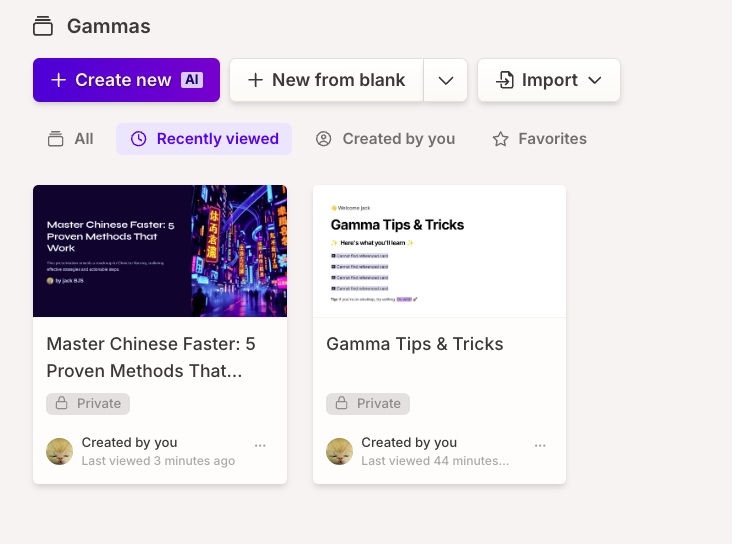
Go to gamma.app and sign up with Google or an email address. You’ll land on the dashboard, where your decks, documents and sites are listed.

2. Click Create new
Click the Create new (or New) button on the dashboard.
3. Pick how to start
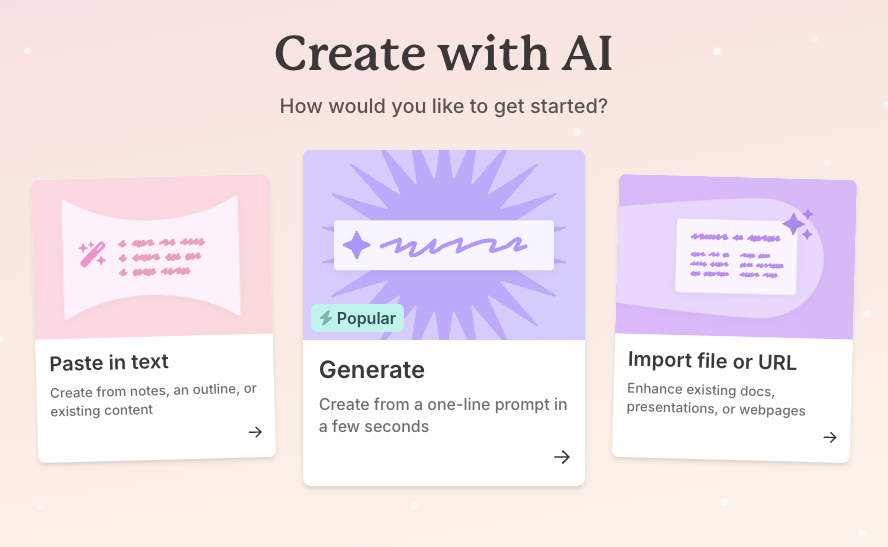
Gamma gives you three starting points:
- Generate: write a one-line prompt and let Gamma draft everything. This is the fastest option and the one used below.
- Paste in text: paste notes, an article or an existing outline, and Gamma turns it into cards. This is the best option when you already know what you want to say.
- Import a file or URL: start from an existing document, deck or web page.
4. Write the prompt and review the outline
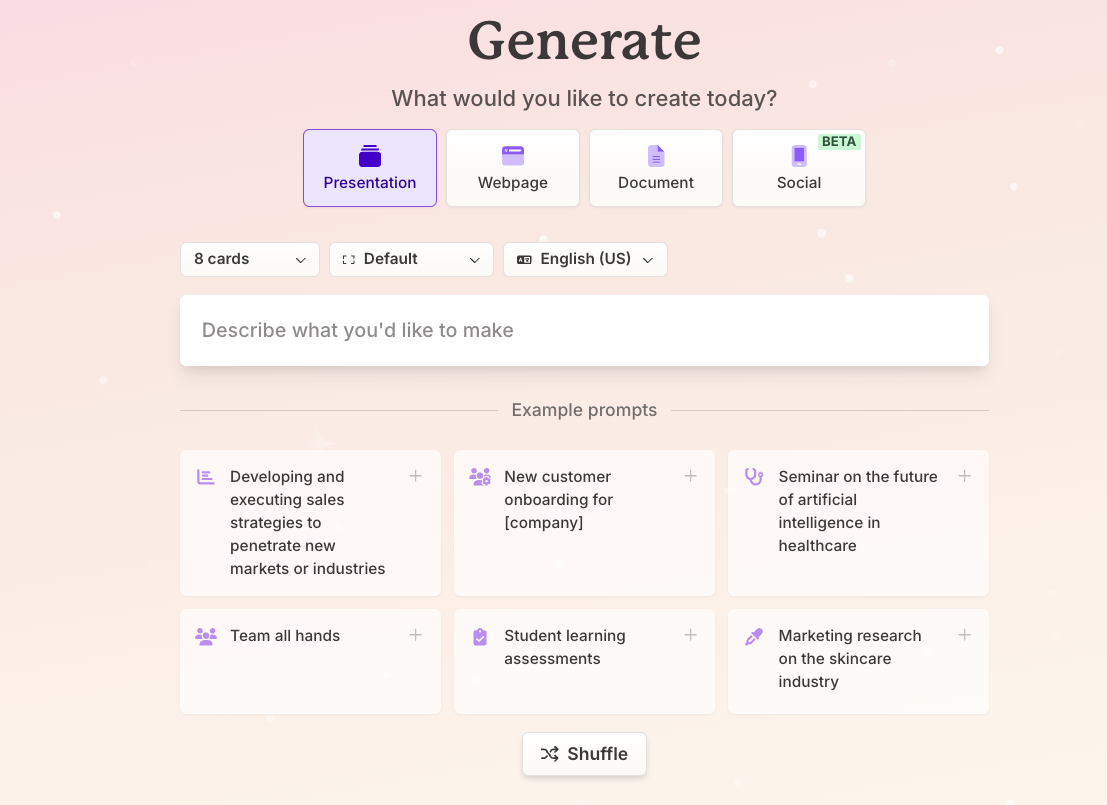
Choose Presentation, set the number of cards and the language, then type your topic. For example: “How a small café can use AI tools to cut admin time: 8 slides for the owner, practical, no jargon.” Saying who the audience is and how many slides you want makes a big difference.
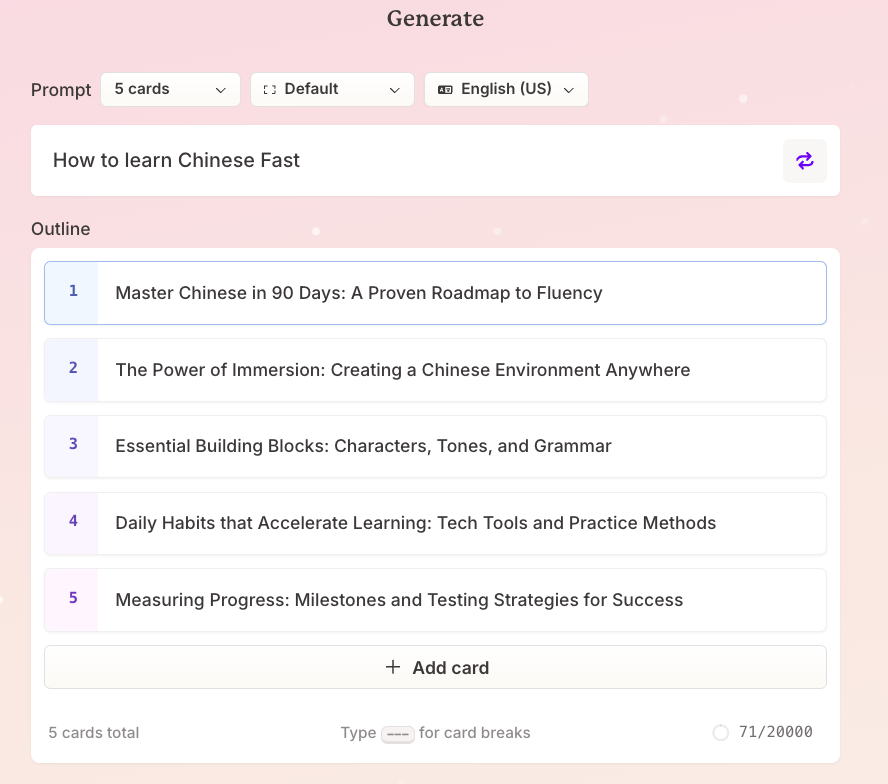
Gamma shows an outline before building anything. Edit this outline carefully. It’s much quicker to reorder, merge or rewrite headings here than to fix finished slides later.
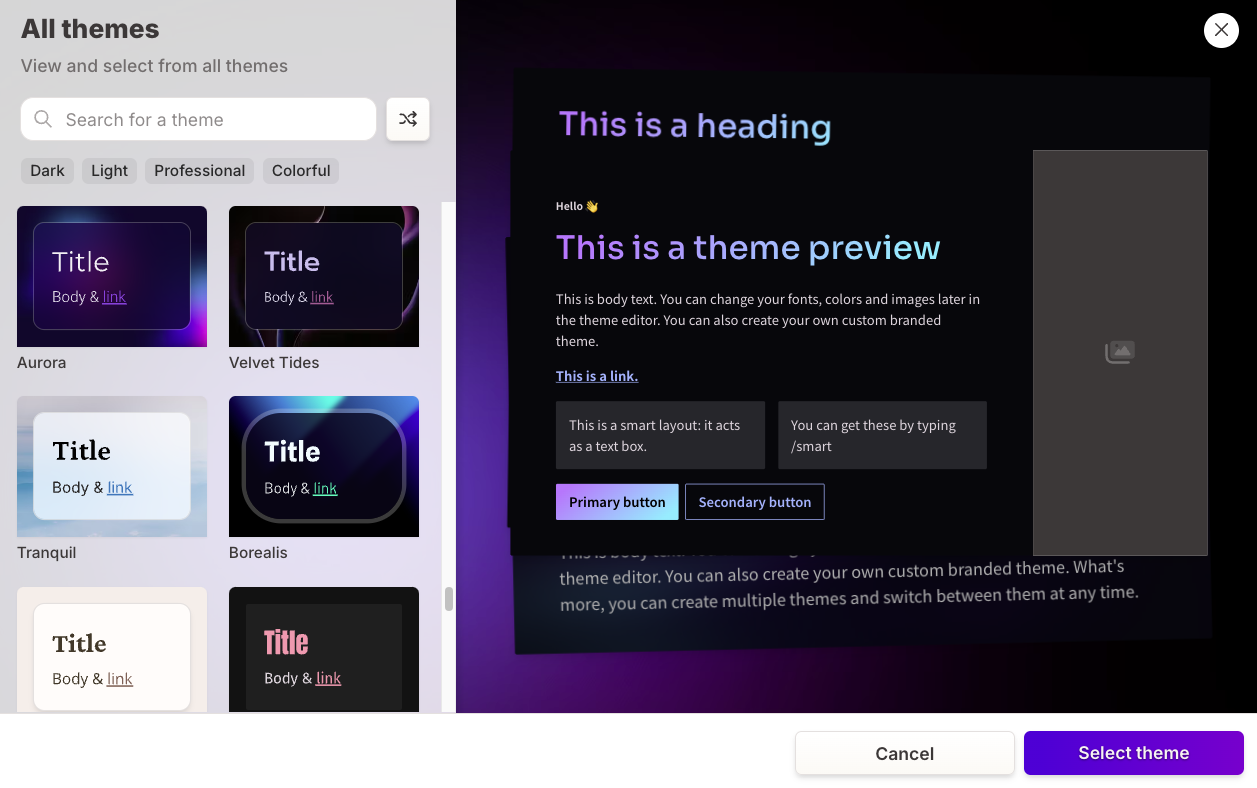
5. Choose a theme and settings
Pick a theme (colours, fonts and background) and decide how much text each card should hold and where images come from: AI-generated, stock photos, or none. If your company has brand colours and fonts, you can create a custom theme on a paid plan so every deck matches.
6. Generate, then edit
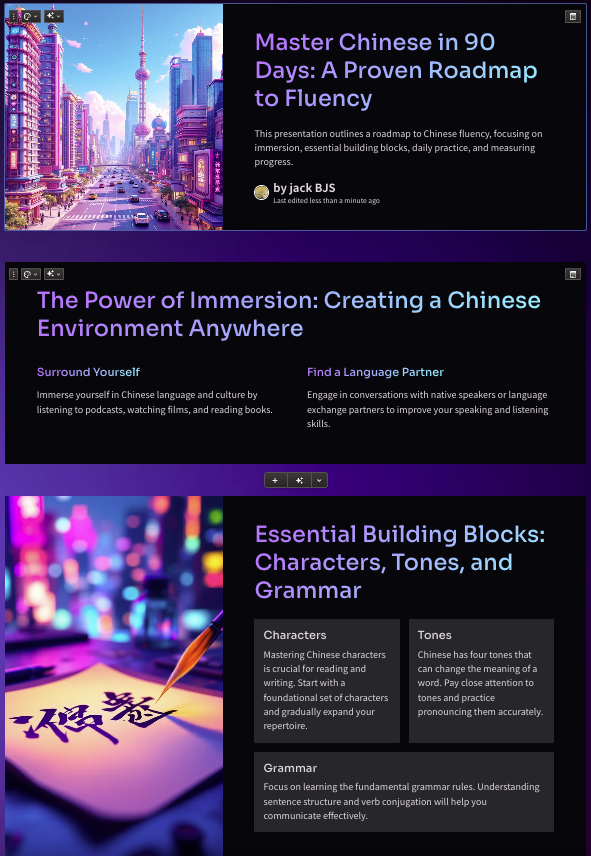
Click Generate. Gamma builds the deck in under a minute. You can then:
- click any text to edit it directly,
- open the AI editing panel and give instructions such as “make this slide a comparison table”, “shorten every card to three bullet points” or “add a chart of these numbers”,
- change a single card’s layout, or replace an image with your own.

7. Present, share or export
Click Present to show it full-screen in the browser, or Share to send a view link. To export, open the menu and choose PDF, PowerPoint or Google Slides. Open the exported file and page through it once, because layouts don’t always carry over perfectly.
What the free plan includes
Gamma has a free plan that gives you a one-time allowance of AI credits when you sign up. Credits are used each time the AI generates or edits content, and on the free plan they don’t refill. Free decks also show a “Made with Gamma” badge. The paid plans add monthly credits, remove the badge, and unlock features such as custom branding, more advanced AI models and analytics. Check the official pricing page for current limits and prices, as they change often.
Tips for better results
- Bring your own content when you can. Pasting your notes gives much more accurate slides than a one-line prompt, because the AI isn’t inventing the substance.
- Check every fact and number. Generated text can include made-up statistics. Replace anything you can’t source.
- Cut text. AI drafts tend to be wordy. Aim for one idea per card and a handful of short bullets.
- Swap generic images. Replace AI images that don’t add information with a chart, screenshot or real photo.
- Mind confidential data. Don’t paste sensitive company or client information into any AI tool unless your organisation allows it.
Conclusion
Gamma takes most of the time out of building a presentation: a clear prompt or a pasted outline gets you a designed, shareable deck in minutes. It works best when you give it real content, edit the outline before generating, and check the result, especially if you need a PowerPoint file at the end. Try it on the free plan first and upgrade only if you’ll use it regularly.
Sources
Features and plan details reflect Gamma’s own pages as of September 2026 and may change. This article is not sponsored and contains no affiliate links.